
Verify Google DMI setup
Use this when a Google Workspace customer or trusted operator asks whether to use Direct Mail Injection or manual allowlisting.
Rule of thumb
Section titled “Rule of thumb”Prefer Direct Mail Injection when the customer can authorize the Google Workspace integration and wants more reliable delivery without broad allowlisting. Use manual allowlisting when DMI is unavailable, not approved, or blocked by the customer’s Google admin policies.
Before you begin
Section titled “Before you begin”You need:
- Customer organization.
- Whether they use Google Workspace.
- Whether they have a Google admin who can authorize the integration.
- Open ActiveAdmin.
- Find the customer organization.
- Check whether DMI/email server integration state is visible for the organization.
- Confirm whether the customer has connected the relevant domain or email server.
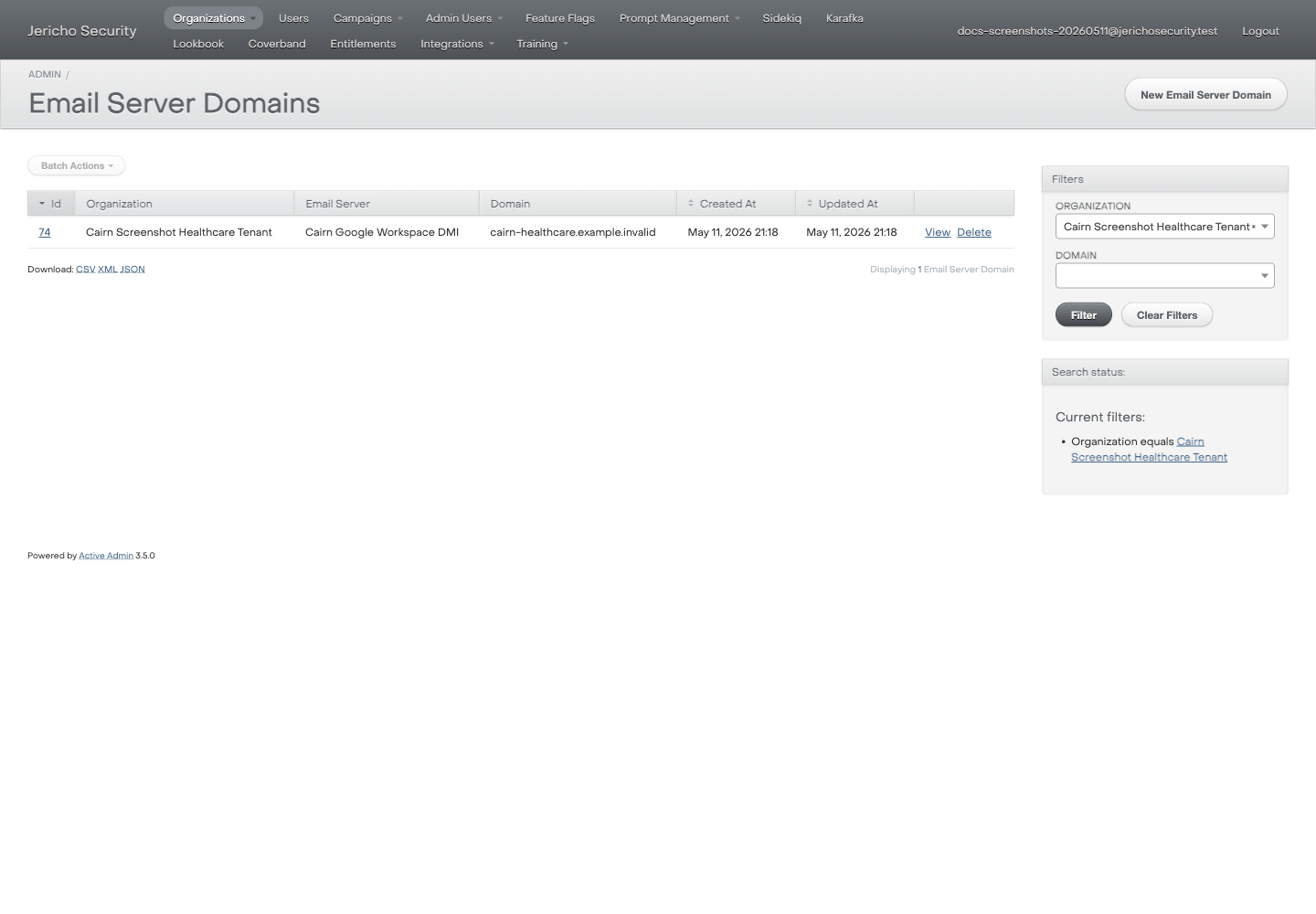
- If the current Jericho UI no longer shows DMI under Integration Settings, do not tell the customer to look there. Use the current public setup doc or escalate for updated navigation.
- If DMI is not configured, confirm whether the customer wants DMI or manual allowlisting.
- If DMI is configured, ask the customer to send or trigger a test only if the public setup guide supports that step.
Expected result
Section titled “Expected result”You can say one of:
- DMI appears configured.
- DMI is not configured yet.
- DMI visibility/status cannot be confirmed from ActiveAdmin and needs engineering/product follow-up.
Escalate when
Section titled “Escalate when”- DMI settings are not visible where expected.
- The customer completed setup but messages are not delivered.
- Google authorization errors appear.
- You need logs or OAuth details.